

Teleporting
Use these commands to visit players, public areas, server locations, homes, and random wilderness spots.
Player Warps
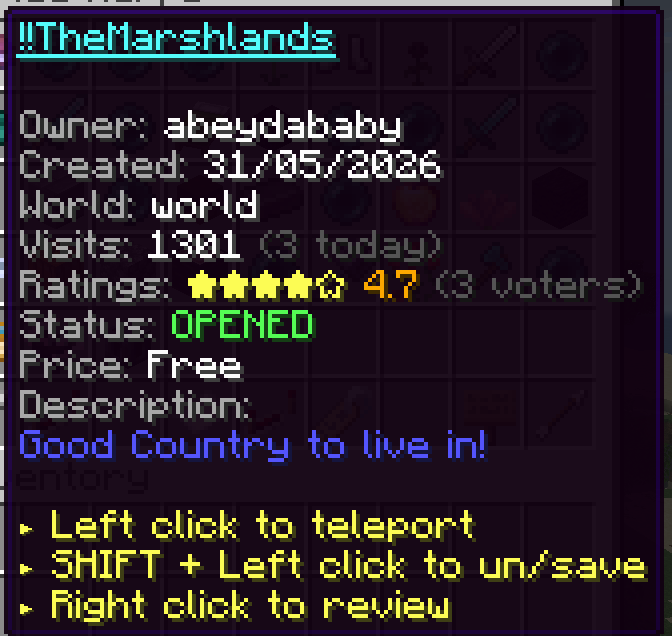
Player warps let you teleport to public areas made by other players. Use them to explore towns, visit farms, find builds, and meet new people.
Main commands
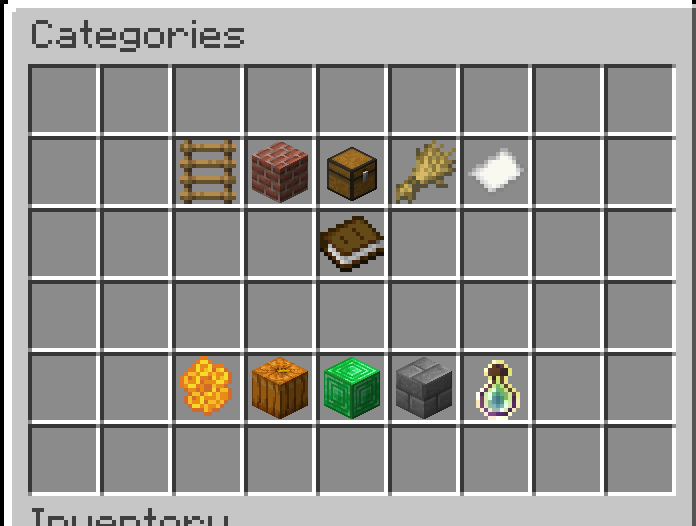
/pwarpOpen the player warp menu./pwarp createCreate a public player warp at your current location.- Use categories like Events, Buildings, Farms, Other, and All Warps to browse public warps faster.
- Inside a category, click a listed warp to teleport to that player area.
- Before teleporting to someone or visiting a pwarp, keep valuable items safe and pay attention to where you land.
Managing Your Warps
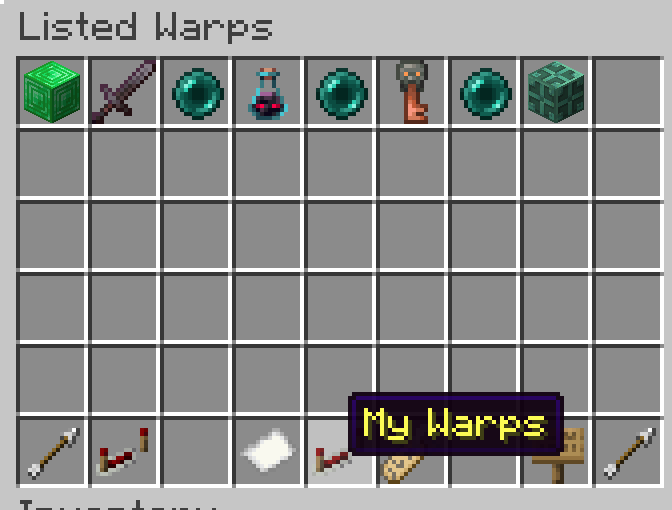
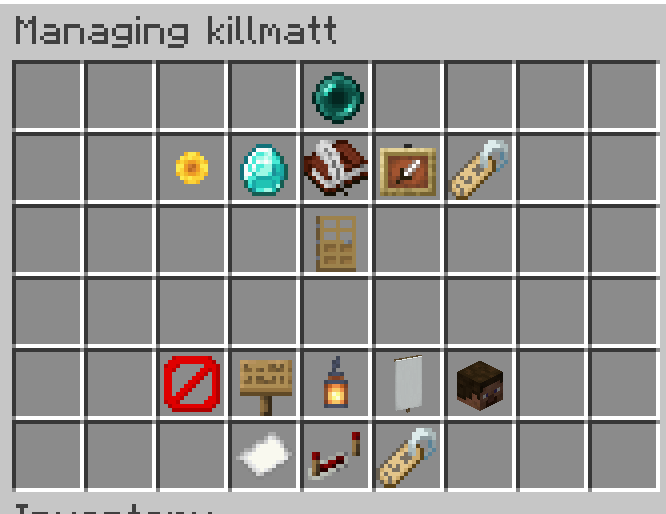
In a warp category, click My Warps at the bottom of the menu. It uses the redstone repeater icon and shows your public warps.
Player teleport
/tpa (player)Ask to teleport to another player./tpahere (player)Ask another player to teleport to you./tptoggleToggle whether players can send you teleport requests.Homes
/homeTeleport to one of your homes./sethome (name)Set a home at your current location./delhome (name)Delete a saved home./homesView all of your saved homes.Set a home before exploring so you have a safe way back to your base.Server travel
/warpView all server warps./warp endTeleport to the End warp./warp cratesTeleport to the crates area./rtpLeave spawn and teleport to a random place in the survival overworld.This is the normal way to start exploring and find an area for your first base.
Linking Discord
Link your Minecraft account to LoungeSMP Discord so your in-game rank can sync to your Discord role and your Minecraft chat can appear in the Discord game-chat channel.
/discordsrv linkEnter the command in the in-game chat while connected to LoungeSMP.
Nickname Colour Codes
Supporter ranks can use legacy Minecraft colour codes with /nick. Put a colour code directly before the part of your nickname you want to colour.
Set a coloured nickname
/nick (colour code)(nickname)Set your nickname using one or more supported & colour codes.Minecraft colour codes
-
&0Black -
&1Dark Blue -
&2Dark Green -
&3Dark Aqua -
&4Dark Red -
&5Dark Purple -
&6Gold -
&7Gray -
&8Dark Gray -
&9Blue -
&aGreen -
&bAqua -
&cRed -
&dLight Purple -
&eYellow -
&fWhite
Nickname examples
/nick &aBeeBuilder
PreviewBeeBuilder
/nick &6Honey&fBee
PreviewHoneyBee
/nick &bAqua&dBloom
PreviewAquaBloom

Crates
Crates are opened at the crates area. Different crate keys come from voting, events, jobs, ranks, or the store depending on the crate.
Crate travel
/warp cratesTeleport to the crates area.
Player Tools
Quick cosmetic and movement commands.
Cosmetics and poses
/cosmeticsOpen the cosmetics menu./sitSit where you are standing./spinSpin your player for fun./layLay down.
Other Commands
Useful one-liners for private messages, chat control, inventory cleanup, and item frame display tools.
Messages and chat control
/tell (player) (message)Send a private message to a player./msg (player) (message)Send a private message to a player./r (message)Reply to the person who most recently sent you a private message./ignore (player)Stop seeing a player's chat messages.Inventory cleanup
/disposalOpen a disposal menu for permanently deleting unwanted items.Warning: Items placed in disposal cannot be recovered.Item frames
/invisibleitemframes toggle visibilityWhile looking at an item frame, toggle the frame visibility so it becomes invisible or visible again./invisibleitemframes toggle glowWhile looking at an item frame, toggle the item glow. This is a rank perk.